¶ Building your own container images with dockerfiles and pipelines
Sooner or later, while creating different pipelines, you wish you had an image which does exactly what you want it to do and it being preconfigured with all the software and libraries you need.
Since I am working a lot with ansible I needed a custom Image, which already has my preferred pip packages and Ansible galaxy collections installed.
In this article I will show you how I build my own Ansible baseimage, how you can create the same dockerfile, install the needed collections and push it to your own Harbor or any other image registry.
¶ Prerequisites
- A functionig GitLab runner has to be present
¶ Example situation
I had the plan to use a GitLab pipeline to be able to interact with my OKD cluster to e.g. deploy new software to the cluster or assert the cluster status.
Docker had no image, which I trusted, that hat all libraries and collection installed I needed and that wasn't outdated.
Thereon I got the idea to build a custom Ansible baseimage via a dockerfile and use it for the pipeline.
We will integrate hadolint into the pipeline, an image / tool to lint the dockerfile we are gonna create, to avoid having mistakes in our dockerfile and to look really professional.
¶ The entire project
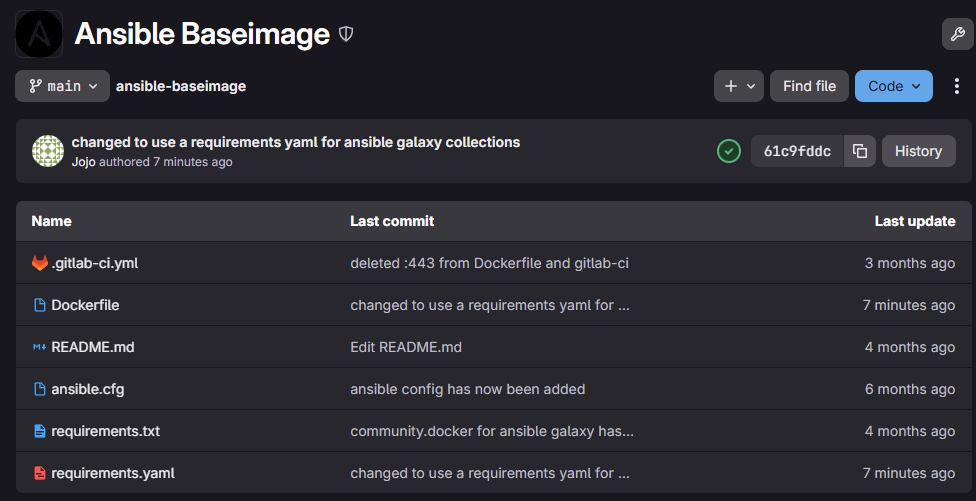
This is what the project will look like if all the needed files are present. I will now explain all the files in detail.
¶ Dockerfile and associated files
Wir starten mit der Dockerfile, der Datei, welche wirklich zuständig ist für die Konfiguration des Images.
FROM harbor.johannesmauser.de/images-for-gitlab/ubi9-python-312:latest

COPY requirements.txt /build/requirements.txt
COPY requirements.yaml /build/requirements.yaml
COPY ansible.cfg /etc/ansible/ansible.cfg

USER 1001

RUN /opt/app-root/bin/python3.12 -m pip install --no-cache-dir -r /build/requirements.txt &&\
    ansible-galaxy collection install -r /build/requirements.yaml
- First up in line 1 we specify which base image to use. In this case I decided to use an UBI 9 Image which already has python 3.12 preinstalled, perfect for Ansible.
Of course you can use the UBI 9 image or any other python image for that matter, it doesn't have to come from your own image registry. Link to the UBI 9 image from RedHat: registry.access.redhat.com/ubi9/python-312:latest
- In the next 3 lines we copy files from the project into the new image. In the 2 requirement files the preferred pip packages and Ansible galaxy collections are specified, which get installed in the last line of the dockerfile.
The ansible.cfg is used too configure the default options of Ansible.
- After that we switch to the user 1001, otherwise the image would run with root.
This is unnecessary and only brings potential security risks which can be avoided. Because of that we switch to user 1001.
- At the end all the pip packages specified in the requirements.txt file and all the Ansible galaxy collections specified in the requirements.yaml get installed into the new image.
requirements.txt for the pip packages
ansible-core==2.20.1
ansible-lint==25.12.2
yamllint==1.37.1
kubernetes==34.1.0requirements.yaml for the Ansible galaxy collections
collections:
  - name: community.docker
  - name: community.general
- name: kubernetes.coreansible.cfg for the Ansible configuration
[defaults]
host_key_checking = False
gather_facts = False
jinja2_native = True
¶ The entire pipeline
This is the entire pipeline to get an overview, below I will explain in further detail what happens in the 2 stages.
stages:
  - hadolint
  - build and push

hadolint:
  image: harbor.johannesmauser.de/images-for-gitlab/hadolint-alpine:latest
  stage: hadolint
  script:
    - find . -name 'Dockerfile*' -exec hadolint --no-fail -f gitlab_codeclimate {} + > docker-lint.json
  artifacts:
    name: "$CI_JOB_NAME artifacts from $CI_PROJECT_NAME on $CI_COMMIT_REF_SLUG"
    when: always
    reports:
      codequality:
        - docker-lint.json

docker-build:
  image: harbor.johannesmauser.de/images-for-gitlab/docker_cli:latest
  stage: build and push
  services:
    - name: harbor.johannesmauser.de/images-for-gitlab/docker_in_docker:latest
      alias: docker
  variables:
    HARBOR_TARGET_DOCKER_IMAGE_NAME: ansible-baseimage
    DOCKER_TLS_CERTDIR: ""
  before_script:
    - docker login harbor.johannesmauser.de -u "$CICD_ROBOT_ACCOUNT_NAME" -p $CICD_ROBOT_ACCOUNT_PASSWORD_TOKEN
  script:
    - docker build -t "$HARBOR_TARGET_DOCKER_IMAGE_NAME" .
    - docker tag "$HARBOR_TARGET_DOCKER_IMAGE_NAME" "harbor.johannesmauser.de/images-for-gitlab/$HARBOR_TARGET_DOCKER_IMAGE_NAME:latest"
    - docker push "harbor.johannesmauser.de/images-for-gitlab/$HARBOR_TARGET_DOCKER_IMAGE_NAME:latest"
¶ The pipeline - linting the dockerfile
The first stage of the pipeline is responsible to check the dockerfile for any problems. This is done with the previously mentioned tool / image with the name of hadolint.
In this case I pull the hadolint image from my Harbor, of course it can be downloaded from docker directly.
The script of this stage looks for files with dockerfile at the start of the file name and creates a json with output.
hadolint:
  image: harbor.johannesmauser.de/images-for-gitlab/hadolint-alpine:latest
  stage: hadolint
  script:
    - find . -name 'Dockerfile*' -exec hadolint --no-fail -f gitlab_codeclimate {} + > docker-lint.json
  artifacts:
    name: "$CI_JOB_NAME artifacts from $CI_PROJECT_NAME on $CI_COMMIT_REF_SLUG"
    when: always
    reports:
      codequality:
        - docker-lint.json
¶ The pipeline - build dockerfile and push image
In the seconds stage we use the images docker cli and docker in docker. These 2 images are also downloadable directly from docker.
First up the before_script logs in to my Harbor using a robot account to be able to upload images.
The login credentials are saved in the CI/CD variables in the project. I will later on explain more about the variables used in this pipeline.
After that the script builds the image with the specified name, give it a tag for the Harbor and push it to the Harbor.
docker-build:
  image: harbor.johannesmauser.de/images-for-gitlab/docker_cli:latest
  stage: build and push
  services:
    - name: harbor.johannesmauser.de/images-for-gitlab/docker_in_docker:latest
      alias: docker
  variables:
    HARBOR_TARGET_DOCKER_IMAGE_NAME: ansible-baseimage
    DOCKER_TLS_CERTDIR: ""
  before_script:
    - docker login harbor.johannesmauser.de -u "$CICD_ROBOT_ACCOUNT_NAME" -p $CICD_ROBOT_ACCOUNT_PASSWORD_TOKEN
  script:
    - docker build -t "$HARBOR_TARGET_DOCKER_IMAGE_NAME" .
    - docker tag "$HARBOR_TARGET_DOCKER_IMAGE_NAME" "harbor.johannesmauser.de/images-for-gitlab/$HARBOR_TARGET_DOCKER_IMAGE_NAME:latest"
    - docker push "harbor.johannesmauser.de/images-for-gitlab/$HARBOR_TARGET_DOCKER_IMAGE_NAME:latest"
¶ The pipeline - CI/CD variables
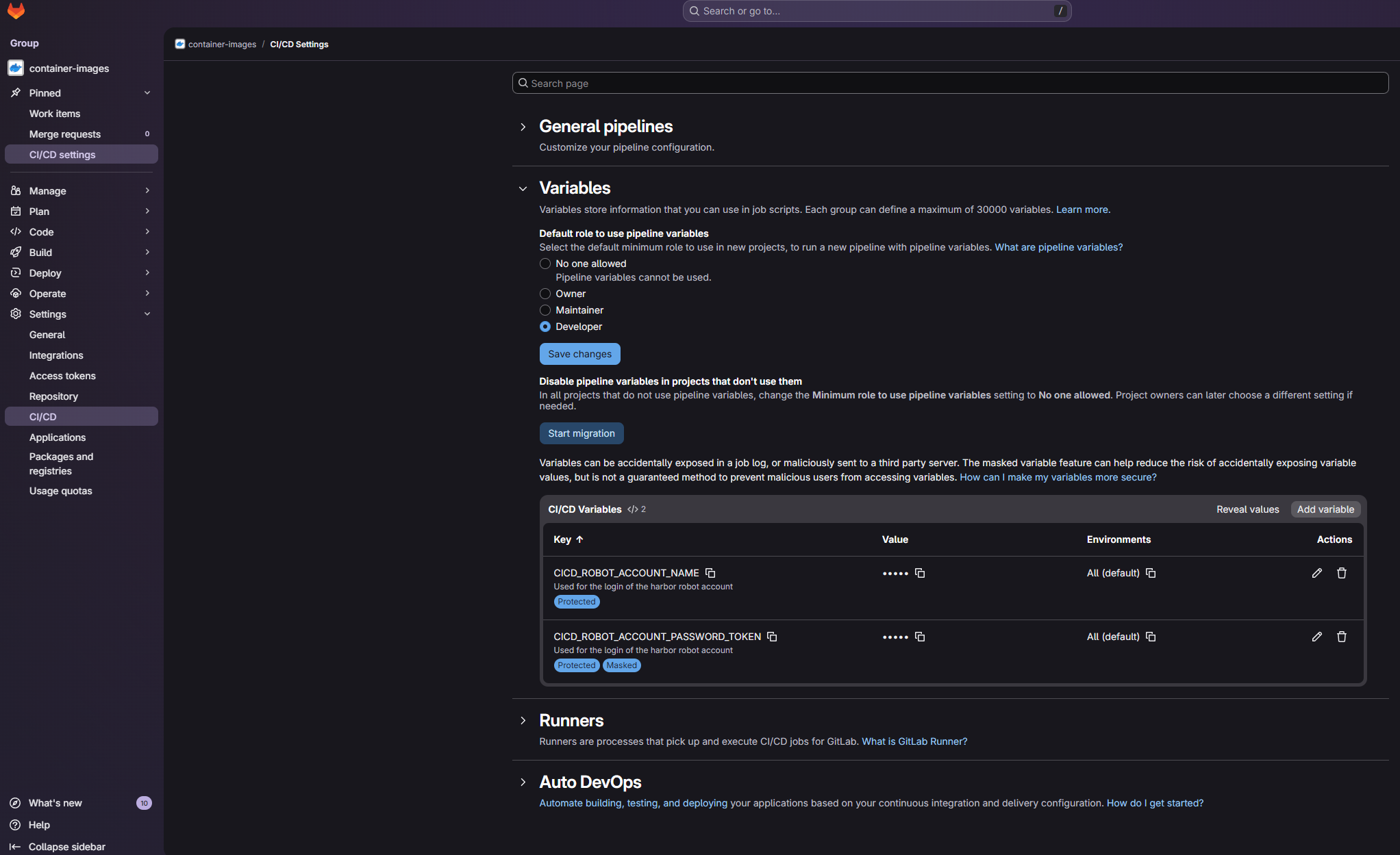
To use CI/CD variables you have to navigate to the bottom left in the project, select CI/CD and open variables.
If you have a group which the project is a part of and you want to use the variables in alle the projects of the group I would recommend setting the variables for the group. Thorugh this all projects that are part oft the group will be able to access the variables.
If you set the variables in the group, you also don't have to change the variables in every project one by one and only have to edit them once.
I set the variable for the password of the robot account to masked, so the variable value won't be shown in the pipelines.
It is recommended to write the CI/CD only in upper case.
¶ Debugging
- If you don't have a lot experience with GitLab pipelines you may don't know that you need a GitLab runner to run GitLab pipelines. The runner is responsible for actually running the tasks in the pipelines.
¶ Official documentation
This is the official very detailed documentation on how to create Images with a Dockerfile.